Data Quality
Ecommerce data quality
Check the definitions, completeness, consistency and freshness of ecommerce data before using store reports to make decisions.
Ecommerce data is useful for a decision only when the team knows what each measure counts, can trace important records to source, and can spot a broken feed. A plausible dashboard total is not enough: purchases may arrive without usable values, while a tracking break may leave store orders unaffected.
Define the measure before checking it
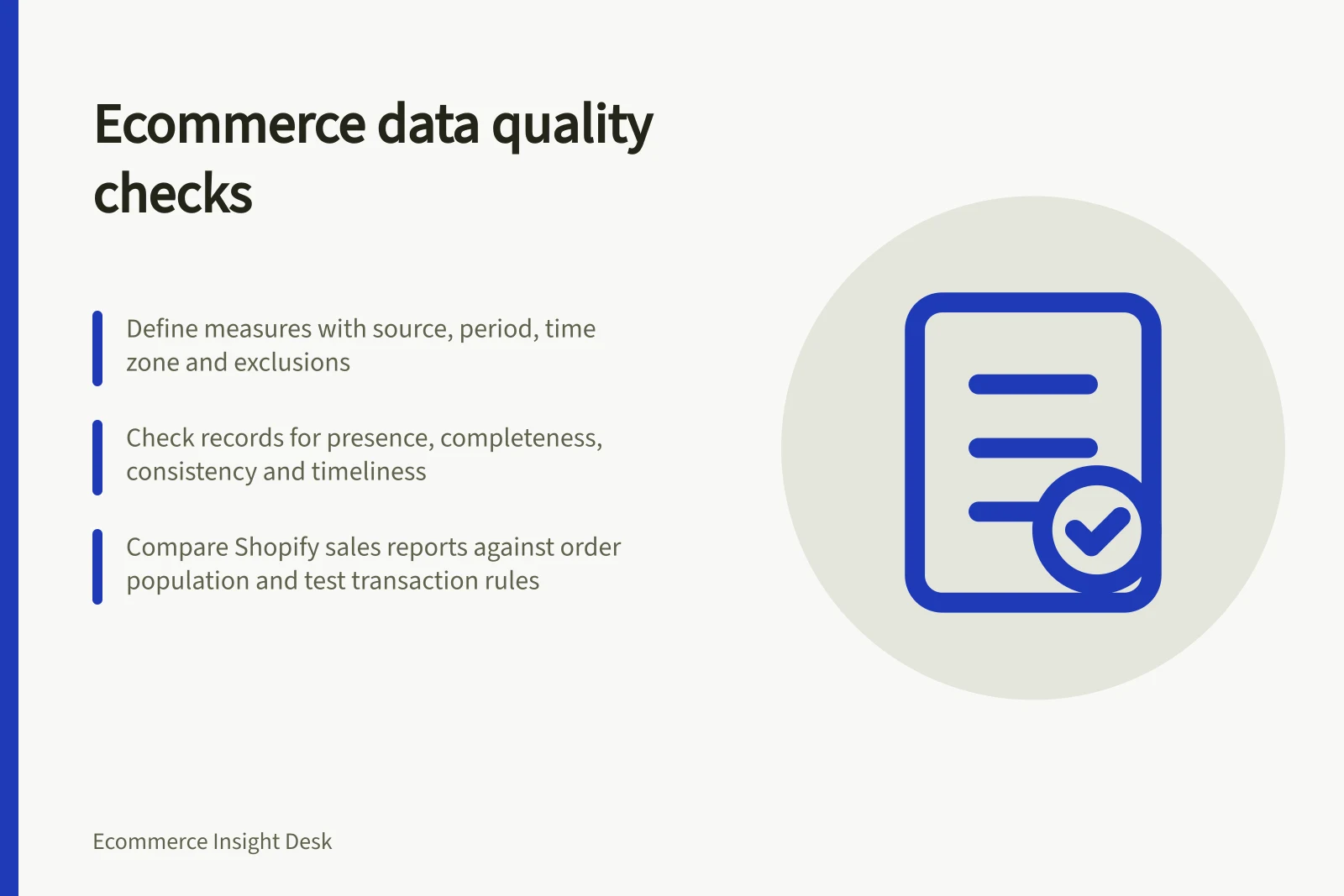
Record the source, reporting period, time zone, included order statuses, value definition and exclusions for each headline measure. Use the commerce system to establish which orders exist. Use an event tool to see which shopping actions it observed. The two sources answer different questions.
Google Analytics ecommerce reporting and Shopify sales reporting are separate views of activity. Shopify sales reports use their own sales rules. Agree on the measure before comparing totals.
Check whether records are usable
| Check | Question | If it fails |
|---|---|---|
| Presence | Did the expected order or event arrive? | Inspect the affected journey and collection point. |
| Completeness | Are the ID, currency, value and relevant item details present? | Compare the source record with the event payload. |
| Consistency | Do IDs, statuses and amount definitions align? | Map fields and document legitimate differences. |
| Timeliness | Has each source processed the period? | Mark the comparison provisional and repeat it. |
Treat a missing value differently from a genuine zero. Keep incomplete records in an exception list so they remain in the error rate. Where usable IDs exist, investigate individual purchases before drawing conclusions from aggregate totals.
A Shopify sales report can also be checked against its stated order population: its order count refers to orders placed on a given date. This gives reviewers a concrete check when the period or set of records being compared appears inconsistent.
Check changes and watch for gaps
After a theme, app, checkout or tagging change, replay the affected shopping actions using an approved test method. Inspect the event details and the store record separately. A preview or debug tool can help confirm a test event; it cannot prove that every customer journey will be observed or that a processed report is final.
Monitor missing money fields, unmatched IDs and unexpected changes in event counts. Set alert thresholds against the store's usual pattern and the cost of an error. Record release times and give each exception an owner, so a reviewer can distinguish a measurement break from a trading change.
Refresh reports before treating them as current
Shopify sales reports are generally up to date, give or take about one minute. If a comparison is close to the latest activity, reopen or refresh the report to display newer data before recording the result.
For a repeatable check in Shopify admin, open Analytics, then Reports, and filter the report list to Sales. Record which report was used and whether it was refreshed, so a later reviewer can distinguish a report that was still updating from a verified change.
Shopify sales report refresh timing and reliability
- Report Update Frequency
- Up to date, typically within one minute
- Recommended Action for Close-to-Real-Time Checks
- Refresh the report before recording results
Explain exclusions and discrepancies
Document how test transactions are treated. A real payment made to test checkout may need separate treatment in a management view.
Document internal-traffic filter settings and their intended scope. Do not use a traffic filter as an order-classification method.
When tools disagree, retain both figures and investigate their definitions, filters, dates, missing fields and processing state. Record verified causes and leave unexplained differences visible. Repeat these checks after releases and before material decisions.
Using internal traffic filters in analytics
- ProsReduces noise from internal testing and staff activity; improves data clarity for customer behaviour analysis.
- ConsCannot be used to classify orders; may inadvertently exclude valid traffic if misconfigured.
Use report inclusions as checks
When checking Shopify sales data, confirm that the report's order population fits the question. For example, Shopify's sales-report terms state that pending, cancelled and unpaid orders are included in gross sales, while test and deleted orders are not.
If a difference appears, inspect whether the records fall into one of those groups before treating the result as a missing feed or a tracking fault. Keep the affected records and the reason for their treatment in the exception notes, so the same inclusion rule is applied in later checks.
Common exclusions in Shopify sales reports
- Not included in gross salesTest orders and deleted orders
- Included in gross salesPending, cancelled and unpaid orders
In this guide
- Checking ecommerce tracking after a theme or app updateReplay affected shopping journeys, inspect event details and monitor tracking after a theme or app update.
- Detecting missing currencies and order valuesCheck purchase events for usable currency and value fields, distinguish genuine zeroes from missing data, and trace exceptions to orders.
- Filtering internal and test orders from reportsClassify simulated and real test orders, apply report exclusions consistently, and understand the limits of internal-traffic filters.
- Reconciling event totals across measurement toolsAlign event definitions and reporting periods, match purchase records when possible, and investigate gaps between measurement tools.