Event Tracking
Part of Ecommerce data quality
Checking ecommerce tracking after a theme or app update
Replay affected shopping journeys, inspect event details and monitor tracking after a theme or app update.
After a theme or app update, replay each affected shopping action and watch for its event in a live debugging tool. Compare the event name and payload with the expected fields; a page can look correct while an event has stopped arriving.
Define the release check
List the changed surfaces: product template, basket, checkout extension, consent interface, pixel or app integration. For each affected action, record the expected event and fields from the store's actual event map or an earlier field checklist.
Record the release version and time, then choose an approved test environment or transaction method. If a live order is needed, identify it so it is handled correctly in reports.
Replay the affected journeys
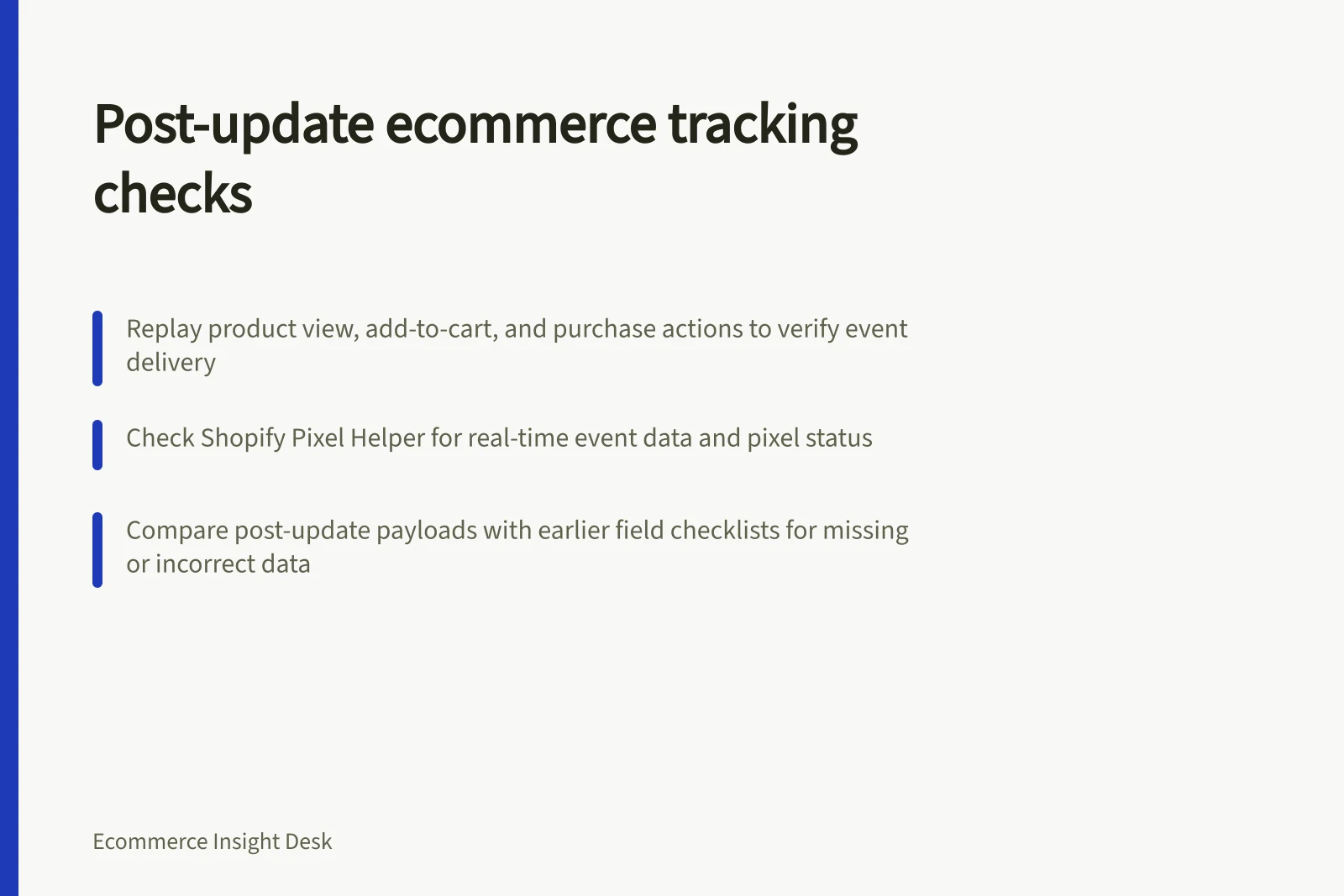
Replay a product-page view and look for page_view; add an item to the basket and look for add_to_cart. Shopify custom-pixel testing can show product_added_to_cart; for a completed-order path, look for purchase.
Test checkout start where the update could affect it, using the event name in your map. If completion changed, test a completed-order path with an approved method; include a mobile layout when responsive templates changed.
Inspect event names and relevant item IDs, currency, value and transaction ID. Log missing, duplicate and incomplete events as separate defects.
In Shopify admin, open Settings > Customer events and confirm the pixel status is Connected. Open Shopify Pixel Helper to check that the custom pixel sends data and receives store data; it displays received events and their data in real time.
Test one custom pixel at a time. Its event log clears when you navigate to another page, and you can't edit the pixel while the helper is running; after saving a change, close and reopen the helper before retesting.
For a custom TikTok pixel, run Shopify Pixel Helper and TikTok pixel helper in the same browser session. Check whether the event appears in Shopify's helper and is processed and received by TikTok's helper.
For GA4, enable debug mode on the browser or device and open DebugView. Replay the actions and inspect the live events and parameters; use Google Tag Assistant to test whether tags have been implemented correctly.
If Google Tag Manager delivers tags, select the site in GTM and click Preview before replaying the journey. Preview's debug window shows which tags fired, on which page and why.
Compare with a known-good sample
Compare post-release payloads with an earlier field checklist for the same action and product type. Check field mapping as well as event presence: a purchase event can arrive with an empty currency or the wrong value.
After deployment, watch for gaps between store orders and observed purchases, and for missing fields. Keep the release time beside the trend.
For each failure, record the journey, event, device or browser, payload difference and owner. Fix the collection path, replay the same action and mark the affected reporting period if data may be incomplete.
Expected vs. Post-Update Event Payloads
- Event Name
- `purchase`
- Currency
- AUD